Learning how to speed up a slow computer can save you from replacing a machine that still has life in it. Most computers slow down gradually, not suddenly, as storage fills, programs pile up, updates lag, and background tasks multiply. The good news is that many slowdowns have simple, safe fixes that take minutes, not hours, and they do not require technical expertise. The key is to diagnose before you spend: find what is actually slow, then fix that first.
This guide walks through safe checks in order: storage, startup programs, updates, browser load, malware checks, and hardware limits. It avoids risky tweaks and registry cleaners, which often cause more harm than good. Whether your computer is a few years old or simply cluttered, the steps below will help you restore a smoother, more responsive machine, and tell you honestly when an upgrade or replacement makes more sense.
First, Find What Is Actually Slow
Slow can mean different things: slow startup, slow app opening, slow browsing, or slow everything. Note when slowness happens, because that points to the cause. Slow startup often means too many startup programs. Slow browsing often means too many tabs, extensions, or a weak connection. Slow everything, with fan noise and heat, may mean a struggling drive, low memory, or a background task using heavy resources. A few minutes of observation saves hours of random fixes.
Use your system’s built-in task manager or activity monitor to see which programs use the most processor, memory, or disk. If one program consistently uses heavy resources, updating, closing, or replacing it may solve the problem. Do not end system processes you do not recognize, because that can crash your computer. Focus on user programs you installed, especially ones you no longer use, and on browser tabs that multiply silently during a workday.
Free Up Storage the Safe Way
Full storage slows computers, especially when the main drive has little free space left for temporary files and updates. Start by deleting files you truly no longer need: old downloads, duplicate photos, large videos you have backed up, and installers you will not reuse. Empty the trash or recycle bin after deleting, because files there still occupy space. Use your system’s storage tool to see what is taking space, rather than guessing folder by folder.
Move large files you want to keep to an external drive or cloud storage, and keep a backup before deleting anything important. Uninstall programs you no longer use through the system’s proper uninstaller, not by deleting program folders, which can leave broken entries behind. Aim to leave comfortable free space on your main drive, because a drive that is nearly full will struggle even with simple tasks, and future updates need room to install safely.
Trim Startup Programs and Background Tasks
Many programs set themselves to start with your computer, even if you use them rarely. Each one adds seconds to startup and consumes memory in the background. Review your startup list and disable programs you do not need immediately at login, like chat apps, updaters for rarely used software, or helper tools you installed once and forgot. Keep security software and essential system tools enabled, and disable only programs you recognize as non-essential.
Background tasks also include cloud sync, backups, and automatic updates, which are useful but can compete for resources during work. Schedule large backups and syncs for times when you are not working intensively, if your software allows it. Close programs you are not using, especially heavy browsers with many tabs, and restart your computer regularly, because a restart clears temporary states and stuck processes that accumulate over days of sleep and wake cycles.
Update Software, Drivers, and Your Browser
Outdated software can be slow and insecure, so keep your operating system, browser, and key apps updated. Updates often include performance improvements and security fixes, and they keep compatibility with websites and files. Set updates to install at a convenient time, and restart after major updates so changes take effect cleanly. If an update causes a problem, note what changed and check the maker’s support pages before rolling back, because rolling back can reintroduce security issues.
Browser performance deserves special attention, because browsers now handle much of our work. Too many tabs, heavy extensions, and accumulated cache can slow even a capable computer. Try closing unused tabs, disabling extensions you do not use, and clearing browsing data carefully, keeping passwords you need. Test in a clean browser profile or a different browser to see whether the problem is the browser or the computer, because that distinction guides the next fix.
Check for Malware and Unwanted Software
Malware and unwanted software can slow a computer dramatically, show unwanted ads, or change browser settings. Run a full scan with reputable security software, and remove anything it flags, following its guidance rather than deleting files by hand. Be cautious about free cleaner or optimizer tools that promise speed: many are ineffective, some install unwanted software, and a few are outright harmful. Stick to your system’s built-in tools and well-known security software.
Good security habits also prevent future slowdowns. Avoid downloading software from untrusted sites, be wary of pop-ups that claim your computer is infected, and keep security software updated, practices that align with cybersecurity tips for 2026. If a scan finds serious malware, change important passwords from a clean device after cleanup, and consider professional help if the computer still behaves strangely. A clean, secure computer is not only faster, it is safer for work and personal data.
When Hardware Is the Limit
Sometimes software fixes are not enough, because hardware has reached its limit. Low memory causes slowdowns when many programs run at once, and an old mechanical hard drive is far slower than a modern solid-state drive for startup and app loading. If your computer allows upgrades, adding memory or replacing a hard drive with a solid-state drive can transform an older machine for far less than a new computer. Check upgrade options for your specific model before buying parts, because many thin laptops cannot be upgraded.
Understanding how microchips are made and how lithium-ion batteries work helps you judge hardware honestly, especially for laptops, where processor efficiency and battery health affect performance and portability. A laptop with a worn battery may throttle performance, and a desktop with a failing drive may show warning signs like frequent errors or strange noises. Back up your files before any hardware work, and seek professional help if you are unsure about opening a machine, because a careful upgrade beats a damaged computer.
Speed in a Connected World
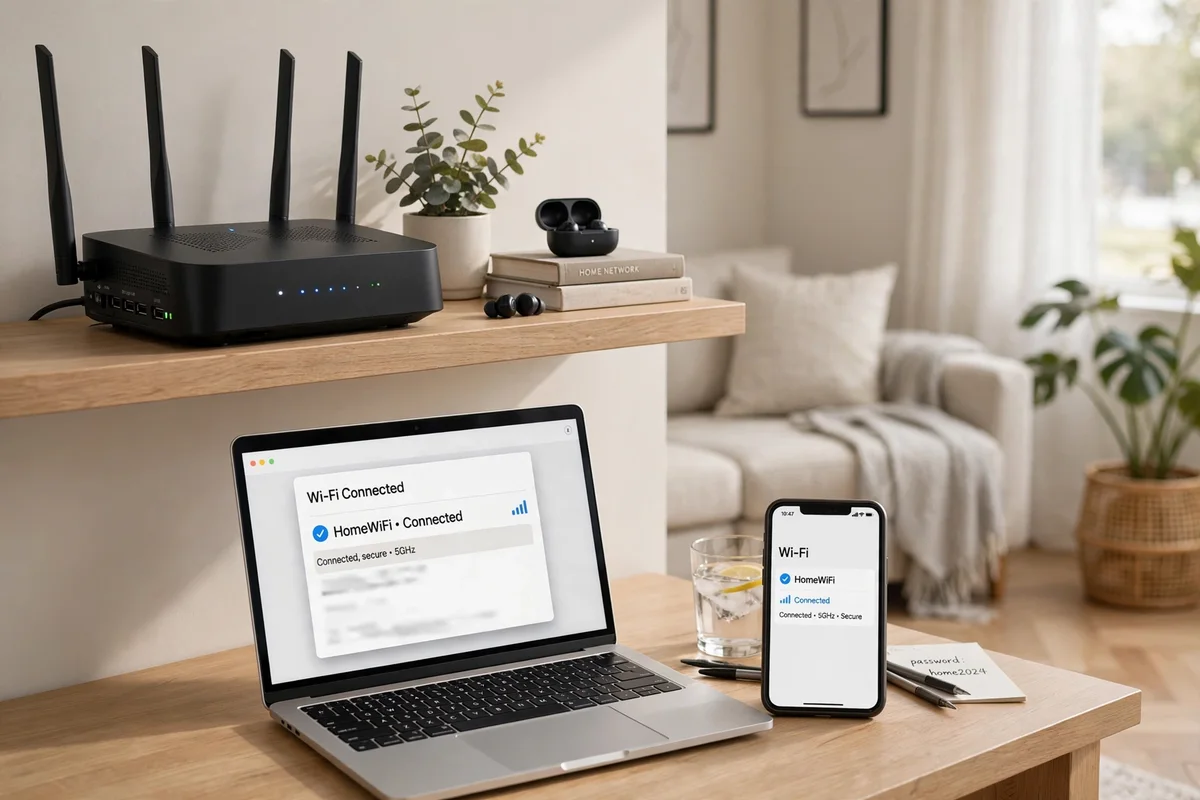
Not every slowdown is your computer’s fault. Slow websites, video calls, and downloads can come from your connection, and how the internet actually works, how home Wi-Fi works, and how 5G networks work basics help you separate a computer problem from a network problem. Test speed near your router, try a wired connection if possible, and check whether other devices are slow at the same time. If only one computer is slow, focus on that machine. If all devices are slow, contact your provider or check your router first.
Connected devices also compete for network and attention. Smart speakers, cameras, and other gadgets share your network, which is the everyday side of how connected devices fit into daily life. A busy network can make a healthy computer feel slow online, even though local apps run fine. Comparing your setup with the coolest tech gadgets of 2026 can remind you that speed is a system: computer, network, and software all matter, and fixing the weakest link gives the biggest improvement.
Newer software features increasingly use on-device intelligence, and how artificial intelligence works in plain language can help you understand why some apps use more resources than older versions. If a new feature slows your machine, check whether you can turn it off or use a lighter alternative. The goal is a computer that feels responsive for your actual work, not a machine running every new feature at once, whether you use them or not.
Finally, set a simple maintenance routine: restart weekly, keep storage from filling up, review startup programs monthly, and keep software updated. That routine prevents most gradual slowdowns and keeps your computer feeling newer for longer. A few minutes of regular care beats a weekend of emergency fixes, and it helps you spot real hardware problems early, while backups and upgrades are still easy.
When you compare your computer with other technology, it helps to keep perspective. A machine that feels slow for one heavy task may still be excellent for writing, browsing, and video calls, and reading the coolest gadgets of the year can remind you that new devices are not always better for your actual work. Similarly, how robots are changing homes and workplaces shows how automation is reshaping tasks, but a reliable, familiar computer that you maintain well often remains the most productive tool on your desk, especially when budgets are tight and learning a new system would cost valuable time.
When to Upgrade or Replace
Consider an upgrade if software fixes help but the computer still struggles with your core tasks, and if an upgrade is possible and cost-effective for your model. Consider replacement if the computer cannot run supported software, has failing hardware, or would cost nearly as much to repair as to replace. Back up files before either path, and compare total costs, including time and data transfer, not just the price of a part or a new machine.
A faster computer is usually a cleaner, updated, well-maintained computer, not a computer with risky tweaks or cleaner apps. Diagnose first, free space, trim startup, update software, check security, and only then consider hardware. Followed in that order, these steps will speed up most slow computers safely, and they will tell you honestly when it is time to move on to a newer machine.