H2: Start by Finding Where the Slowdown Really Is
A slow Wi-Fi connection feels the same whether the problem is your router, your device, or your internet service, but the fix is very different in each case. Before changing settings, run a simple test: try the same website or video on two different devices in the same room, and then try one device close to the router and another farther away. If only one device is slow, the problem is probably on that device. If every device is slow near the router, the router or the internet service is more likely to blame. If devices are fast near the router but slow in a far room, distance and walls are probably weakening the signal. This short detective work takes only a few minutes, yet it prevents hours of changing settings that were never the problem. Learning how Wi-Fi works helps here, because Wi-Fi is a radio signal that must travel through your home, and every wall, floor, and appliance it passes can weaken it.
H2: Router Placement Makes a Bigger Difference Than You Think
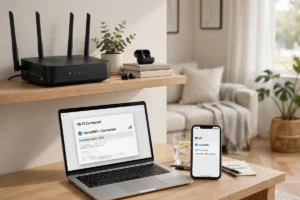
Many routers end up hidden in a corner, behind a television, or inside a cabinet, and each of those spots makes the signal work harder to reach you. A router generally works best in a central, open spot, raised off the floor, with its antennas upright and clear of metal objects. Thick walls, aquariums, and large metal appliances can block or reflect the signal, so moving the router even a few feet can sometimes improve coverage in a far bedroom. Avoid placing it next to a microwave or a large speaker if you can, and keep it away from direct heat. If your home is large or has multiple floors, a single router in one corner may simply not reach everywhere, and that is a coverage problem rather than a fault. In a home full of connected devices, good placement matters even more, because phones, televisions, speakers, and cameras all share the same wireless airspace.
H2: Restart, Update, and Reduce the Load
One of the simplest fixes is also the most overlooked: restart the router and the modem by unplugging them, waiting about half a minute, and plugging them back in. This clears temporary glitches and gives the devices a fresh connection to your provider. Next, check whether the router software is up to date, since updates often fix bugs and improve stability. Then look at how many devices are connected and what they are doing. A video call, a large game download, a cloud backup, and several streaming videos at once can saturate even a good connection. Pausing a large download or backup while you join a call can make an immediate difference. A basic understanding of how the internet works helps explain why this happens: your connection is shared, and heavy tasks compete for the same capacity. Regularly reviewing connected devices also supports safety, as cybersecurity tips explains in practical terms.
H2: Interference, Channels, and Bands
Wi-Fi shares radio space with neighbors, Bluetooth devices, and household electronics, and in an apartment building that space can get crowded. Most modern routers can choose a less busy channel automatically, but a manual restart sometimes helps the router pick a clearer one. Many routers also offer two bands, and knowing the difference helps: one band travels farther through walls but carries less speed, while the other is faster over short distances but fades more quickly through obstacles. A device far from the router may do better on the farther-reaching band, while a device in the same room as the router may do better on the faster band. If your router lets you see both, try each and notice which feels steadier in each room. Related wireless technology, from how 5G works to how GPS works, also depends on clear signals, which is why a little radio awareness goes a long way at home.
H2: When Your Device Is the Problem
If only one device is slow while others are fast, focus on that device. Restart it, forget the Wi-Fi network and reconnect, and check whether its software is up to date. An old device with an older wireless chip may simply be slower than newer devices, especially on a busy network. Check whether a cloud backup, a software update, or a background app is using the connection without you noticing, and close apps you do not need. Also check the obvious physical details: a phone in a thick metal case, or a laptop with its lid nearly closed in a bag, can receive a weaker signal. Even noise-cancelling headphones and other modern gadgets depend on a steady link between device and network, so a device-side check is always worth doing before you blame the router.
Extenders, Mesh Systems, and Wired Options
When distance is the real problem, an extender or a mesh system can help by spreading the signal further, but placement still matters: an extender placed too far from the router will only repeat a weak signal. A mesh system with units spread through the home usually gives smoother coverage than a single extender. For a desktop computer, a television, or a game console that never moves, a wired Ethernet cable is often the most reliable fix of all, because it bypasses wireless interference entirely. Browsing hidden tech gems and coolest gadgets can give you ideas for home networking gear, while smart devices and how drones work show how many everyday devices now depend on a home network that simply works.
H2: When to Call Your Internet Provider
If every device is slow even next to the router, after a restart and an update, and a wired device is slow too, the problem may be with your internet service or your modem. Before calling, note the times when the slowdown happens, whether it affects all websites or only one, and what speeds you see on a wired test. That information helps support staff help you faster, and it helps you notice patterns, such as slowdowns only in the evening when many neighbors are online. Keep the router manual and your account details handy, and be ready to try one restart while on the call. Most slow Wi-Fi problems turn out to be placement, overload, or a simple glitch, and working through them in order usually restores a fast, steady connection without buying anything new.
H2: Testing Speed the Right Way
Speed tests are useful, but only if you test under fair conditions. Test one device at a time, close other streaming and download tasks, and try both near the router and in the room where you normally work. Test at different times of day, because a connection that is fast in the morning may slow in the evening when more people are online. Write down the results, including where you stood and which device you used, so you can compare before and after any change. A single test on a busy phone while someone else streams a movie does not tell you much about your connection itself. Careful testing turns guesswork into evidence, and evidence makes every later fix easier to judge.
H2: Security and Household Habits
A fast connection should also be a safe one. Use a strong, unique password for your Wi-Fi network, keep the router software updated, and change any default administrator password on the router if you have not already done so. Review the list of connected devices from time to time, and remove devices you no longer recognize or use. Teach household members to pause large downloads during important calls, and to avoid plugging unknown devices into the network. These habits protect your speed as well as your privacy, because an unknown device streaming or backing up in the background can slow everyone else without anyone realizing why.
H2: Planning for a Larger Home
If your home grows, with more rooms, more people, or more smart devices, plan your network the same way you would plan any other household system. Think about where a second access point or mesh unit would go, where a wired cable could serve a fixed device, and where the router itself should live for central coverage. Moving a router to a better spot costs nothing, while adding equipment without a plan can create new dead zones. A little planning now means fewer frustrations later, especially as more devices, from televisions to doorbells to laptops, all expect a steady connection at the same time.
A Final Word on Patience and Testing
Fixing slow Wi-Fi rewards patience more than speed. Change one thing at a time, test the result in the room where the problem actually happens, and give the router a few minutes to settle after a restart before judging the change. If you change placement, settings, and equipment all at once, you will never know which change helped, and you may undo a good fix by accident. Keep a short note of what you tried and what improved, because that note becomes invaluable if the problem returns months later. With careful testing and a central, open router position, most homes can enjoy a connection that feels fast, steady, and reliable for everyone in the household.