Learning how to extend iPhone battery life is less about a single trick and more about a set of small habits that add up over a day. Most iPhones do not die because of one app or one setting. They die because of a combination of bright screens, weak signals, background activity, and frequent charging patterns that wear the battery over time. The good news is that many of these factors are under your control, and a few changes can noticeably stretch a charge.
This guide explains battery health in plain language, screen and connectivity settings, background activity, charging habits, and when a battery replacement makes sense. It avoids myths and risky tweaks, and it focuses on settings that help real users, not on extreme measures that make a phone hard to use. Whether your phone is new or a few years old, these steps will help you get more from each charge.
Understand Battery Health First
Battery health reflects how much capacity a battery retains compared to when it was new, and it declines gradually with use, age, and heat. A phone with lower battery health will drain faster and may shut down under heavy load, even if it shows a reasonable percentage. Check your phone’s battery health view to see its current state, and use that as context: a phone with good health that drains fast likely has a settings or usage cause, while a phone with poor health may benefit more from a battery replacement than from settings alone.
Understanding how lithium-ion batteries work in general helps here, because lithium batteries age faster with heat, frequent full discharges, and long periods at very high or very low charge. You cannot stop aging, but you can slow it with sensible habits. Avoid leaving a phone in a hot car, on a sunny dashboard, or under a pillow while charging, because heat is one of the most damaging factors for long-term battery health.
Screen: The Biggest Daily Drain
The screen is usually the largest battery user, so screen settings give the biggest savings. Lower brightness to a comfortable level, rather than maximum, and let auto-brightness adjust to your surroundings. Shorten the auto-lock time so the screen turns off quickly when you set the phone down, because a screen left on in a pocket or on a desk drains power silently. Dark mode can help on phones with certain screen types, but brightness and timeout matter more for most users.
Also consider how you use the screen. Streaming video, gaming, and navigation with the screen on continuously drain faster than reading or messaging with the screen on intermittently. If you watch long videos, lower brightness and use Wi-Fi where possible, because cellular streaming uses more power. Small screen habits, like locking the phone when you pause a video or put it down, add up to meaningful savings over a full day.
Connectivity: Wi-Fi, Cellular, and Location
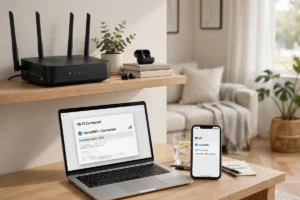
Connectivity affects battery more than many people realize. A phone searching for a weak cellular signal, or switching between towers while traveling, uses extra power. Where reliable Wi-Fi is available, using Wi-Fi usually uses less power than cellular for data, and it can improve call quality through Wi-Fi calling where supported. Learning how home Wi-Fi works and how 5G networks work basics helps you understand why battery drains faster in areas with weak coverage, and why a phone may feel hot while searching for signal.
Location services also use power, especially when many apps request location in the background. Review which apps truly need always-on location, and set others to location only while using the app, or never if they do not need it. Navigation is an exception: it needs location and screen, so expect faster drain during long drives, and keep a car charger handy. Understanding how GPS navigation works helps you see why navigation is power-hungry, and why turning it off when you do not need it saves battery.
Background Activity and Notifications
Background activity lets apps refresh content, sync mail, and update locations even when you are not using them. That convenience costs battery, especially for apps you rarely open. Review background refresh settings and turn it off for apps that do not need constant updates, while keeping it on for mail, messaging, or work apps you rely on. Similarly, frequent notifications wake the screen and use power, so limit notifications to important apps and contacts.
Mail fetch settings matter too. Fetching mail every few minutes uses more power than fetching hourly or manually, though the right choice depends on how urgently you need mail. Push mail, where the server notifies the phone of new mail, can be efficient for important accounts, while manual fetch suits less urgent accounts. Test a setting for a few days and check battery usage by app, because the biggest drain is often an app you would not suspect.
Charging Habits That Protect Long-Term Health
Charging habits affect long-term battery health more than single-day battery life. As a general guide, avoid routinely draining the phone to empty, and avoid keeping it at full charge in heat for long periods. Charging to a moderate level for daily use, and using optimized charging features where offered, can help slow aging. You do not need to obsess over percentages, but avoiding extremes, especially heat plus full charge, is a sensible habit.
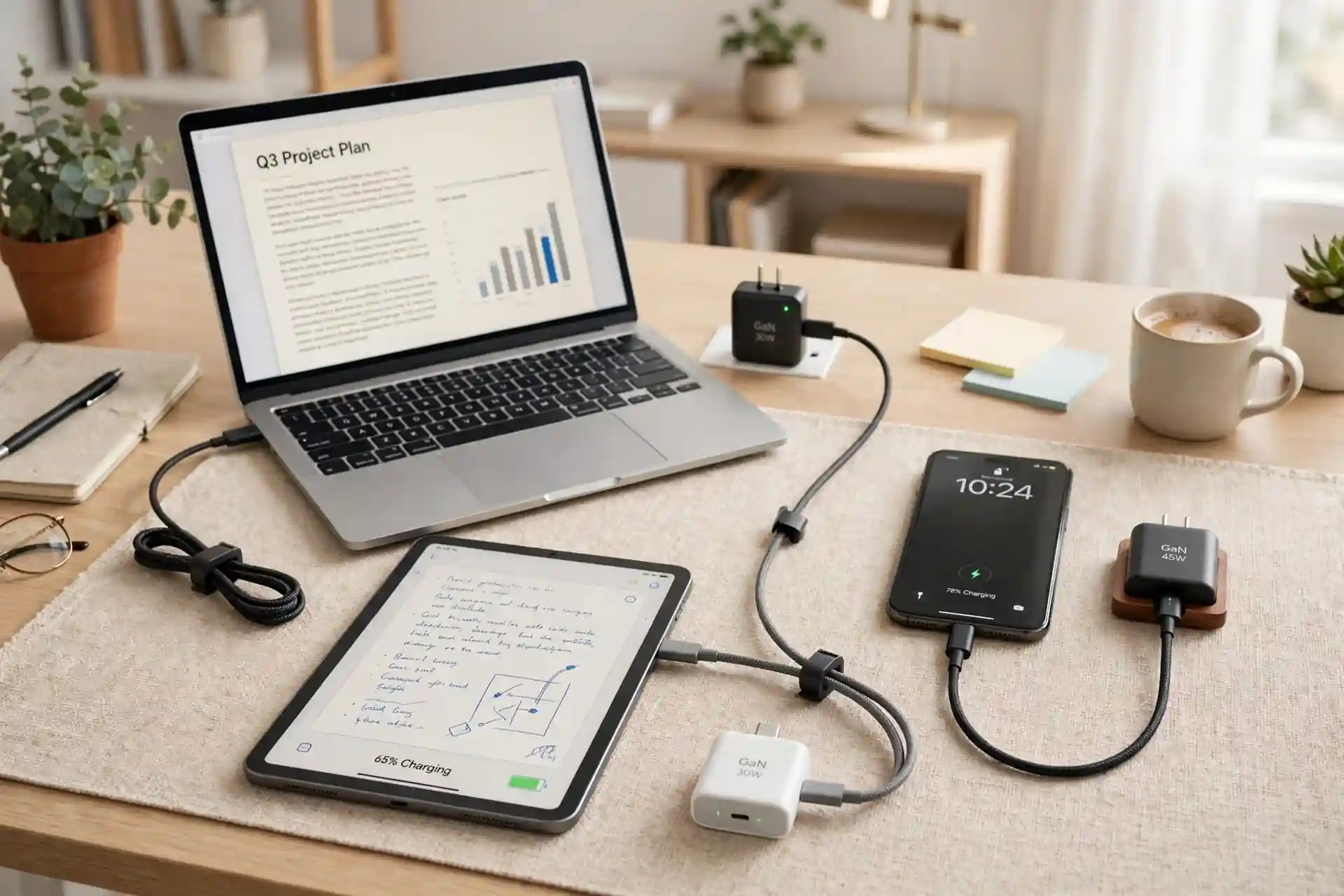
Use reputable chargers and cables, and avoid damaged cables or chargers that overheat. Fast charging is convenient, but it generates more heat, so use it when you need speed and slower charging overnight or at a desk when you have time. Wireless charging is convenient but can also generate heat, so remove thick cases that trap heat if your phone feels warm while charging. These small choices protect battery health over months and years, not just today.
Battery Life in a Connected Life
An iPhone rarely works alone. It pairs with a watch, earbuds, a car, and smart-home devices, which is the everyday side of how connected devices fit into daily life. Each connection uses some power, especially Bluetooth and location sharing, so review which accessories truly need constant connection. A watch that mirrors every notification, for example, can drain both devices faster than a watch set to essential alerts only. Tuning those connections often improves battery on both phone and watch.
Connectivity for travel and work also matters. A phone that stays connected over how the internet actually works services, from maps to messages to cloud backups, will use power in proportion to how much it syncs. Scheduling large backups and photo uploads for Wi-Fi and charging times, rather than cellular and battery, saves both power and data. For remote areas, how Starlink satellite internet works is sometimes discussed as an alternative internet option, though local coverage and plans vary, and it does not change the need for sensible phone settings.
Efficiency improvements in chips and software also shape battery life, and how microchips are made background explains why newer phones can do more on a charge than older models with similar battery sizes. Features that learn your routine and optimize charging or app activity increasingly use the ideas behind how artificial intelligence works, which can help if you let them learn your patterns over a few weeks. Comparing phones and accessories with the coolest tech gadgets of 2026 and the coolest gadgets of the year can also help you decide whether a battery case, a portable charger, or a new phone is the right next step.
Finally, keep security in mind, because a phone with a healthy battery is also a phone you can rely on for important calls and messages. Use strong passcodes, keep software updated, and review app permissions, habits that align with cybersecurity tips for 2026. A phone that lasts through your day is not just convenient, it is a safety tool, and protecting both its battery and its data is worth a few minutes of setup.
When to Replace the Battery
Consider a battery replacement if battery health is low, the phone shuts down unexpectedly, or settings no longer give a full day even with light use. A replacement from a reputable service can restore a phone that is otherwise working well, often for far less than a new phone, and it keeps a familiar device in use longer. Back up your phone before any service, and check warranty or service options for your model.
For most users, though, screen, connectivity, background, and charging habits will extend battery life enough to get through the day comfortably. Start with brightness and auto-lock, review location and background settings, charge sensibly, and give changes a few days to show results. That patient, habit-based approach will help your iPhone last longer each day and stay healthier for years. Review your battery usage once a month, adjust the biggest drain you find, and keep a small portable charger in your bag for long days, so a busy schedule never leaves you stranded with a dead phone when you need it most.