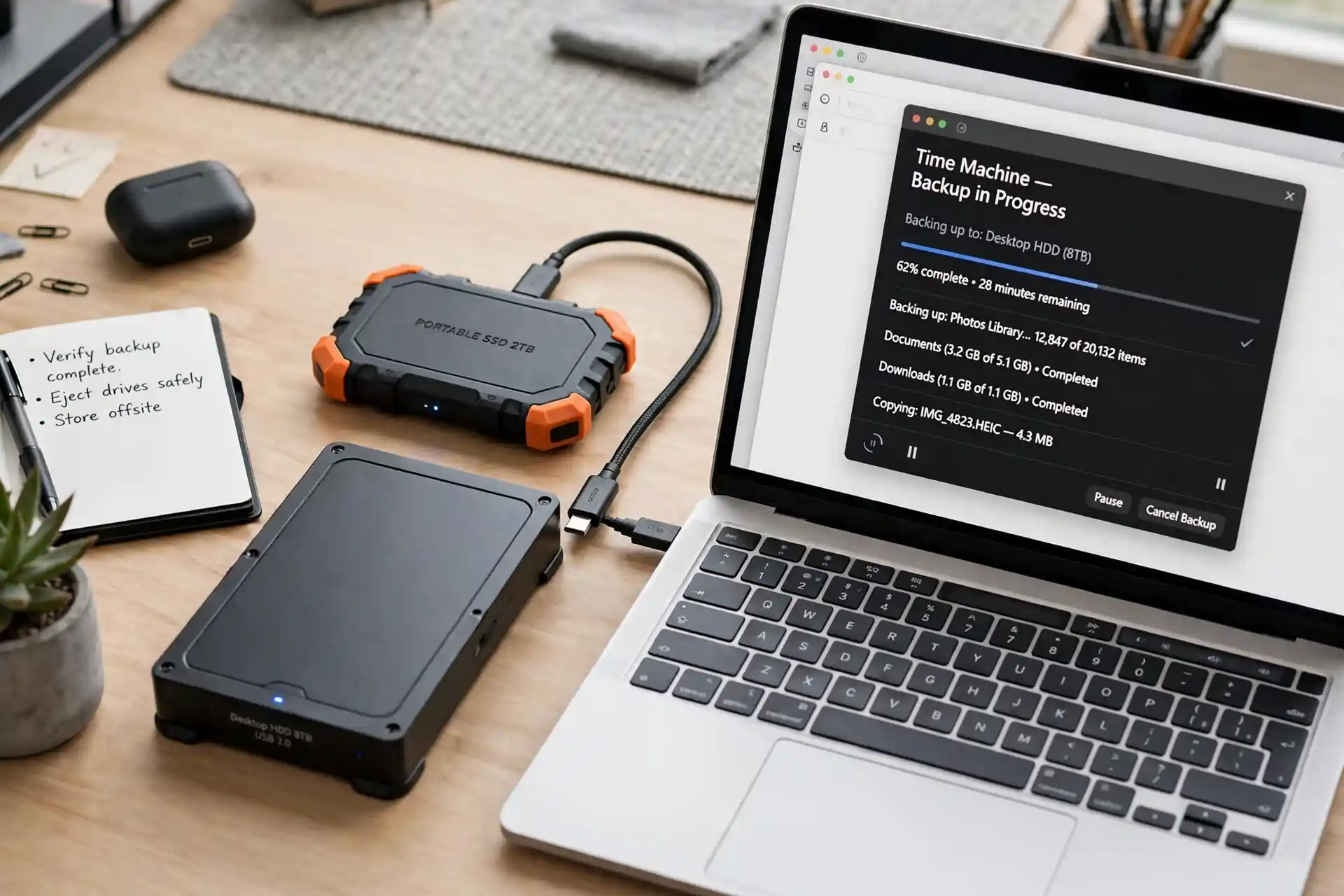
Photos, videos, work files, and family memories pile up faster than most people expect, and a single failed laptop or stolen phone can erase years of them in an instant. The best external hard drives solve that problem simply: a portable box that plugs into your computer, holds your important files, and gives you a safety net you control. Whether you need backup for a home computer, extra space for a gaming console, or portable storage for work on the go, the right external drive is one of the most practical purchases in tech.
This guide covers the choices that matter: hard disk drives versus solid-state drives, how much capacity you really need, what speeds mean in practice, and how to build a backup habit that actually protects you. Prices and models change constantly, so instead of chasing a single recommendation, you will learn how to evaluate any drive you find and choose confidently.
HDD vs. SSD: The Fundamental Choice
Traditional hard disk drives, or HDDs, store data on spinning magnetic platters. They offer the most storage per dollar, making them ideal for large backups and media libraries. A multi-terabyte HDD costs far less than an SSD of the same size, which matters when you are backing up an entire family photo collection or years of video. Their downsides are size, weight, slower speeds, and vulnerability to drops, since moving parts dislike shocks.
Solid-state drives, or SSDs, store data on flash memory chips with no moving parts. They are smaller, lighter, much faster, and far more resistant to drops, which makes them ideal for portable use, travel, and work that involves large files, such as video editing. Their downside is cost per gigabyte: an SSD of the same capacity costs several times more than an HDD. For many people, the right answer is both: a large, affordable HDD at home for full backups, and a smaller, fast SSD for portable work and the files you use most.
Speed differences are real but easy to overstate for basic backup. Copying documents and photos feels similar on either type. Copying hundreds of gigabytes of video feels dramatically different: an SSD can finish in a fraction of the time. If you back up overnight or while doing other work, speed matters less. If you regularly move large projects between computers, speed matters a great deal. Match the drive to your patience and your file sizes.
How Much Storage Do You Need?
Capacity planning starts with measuring what you already have. Check your computer’s storage usage, then add room to grow: photos and videos only accumulate, and a drive that is nearly full today will be full tomorrow. As a practical rule, choose a backup drive at least twice the size of the data you plan to store, so you can keep multiple backup versions and still have breathing room. Version history matters because it lets you recover a file you accidentally changed or deleted weeks ago, not just yesterday.
Typical needs vary widely. A student with documents and photos may be comfortable with a modest drive. A family with years of phone photos and home videos needs terabytes. A photographer or video creator needs more still, often with multiple drives. Do not buy the largest drive available by default; buy the size that covers your data plus growth, from a reputable brand, with money left over for a second backup if possible. One backup is good. Two backups, in different places, is genuinely safe.
Capacity Quick Guide
- Documents and photos only: a smaller drive is usually plenty, with room to grow.
- Family photos and videos: plan for terabytes, since video accumulates fast.
- Creative work and large projects: prioritize speed and capacity together, often with an SSD.
- Full computer backup: at least twice your computer’s used storage, ideally more.
Speed, Connections, and Compatibility
Connection type shapes real-world speed. USB is the standard for external drives, and newer USB versions transfer data much faster than older ones, provided your computer’s ports support them. A fast drive on a slow port runs at the port’s speed, so check your computer’s ports before paying for top-tier speed you cannot use. Thunderbolt connections, found on many newer laptops, offer even higher speeds for demanding work, but they cost more and are unnecessary for basic backup.
Compatibility is usually simple: most drives work with both Windows and Mac computers, though formatting matters. A drive formatted for one system may need reformatting for the other, which erases its contents, so decide which computers will use it before first use, and check the manufacturer’s guidance. Some drives include backup software; others expect you to use your operating system’s built-in tools, which are often excellent and free. Either way, test a restore early: a backup you have never restored from is a hope, not a plan.
Durability features matter for portable drives. Rugged models add shock resistance, water resistance, and reinforced cases, which are worthwhile if the drive travels in a bag daily. For a drive that sits on a desk, ruggedness matters less than quiet operation and reliable cooling. Read reviews focused on long-term reliability rather than launch-day speed tests, since a backup drive’s job is to work flawlessly for years.
Building a Backup Habit That Works
The best drive in the world is useless if it sits unplugged in a drawer. Automate backups so they happen without willpower: schedule weekly full backups and daily incremental ones if your software supports them. Keep the drive connected during backup windows, or plug it in on a regular day, such as Sunday evening, until the habit sticks. Cloud backup can complement a physical drive, giving you off-site protection against fire, theft, or flood, but a local drive restores large amounts of data far faster than downloading it.
Security deserves attention too. External drives hold your most personal files, so encrypt sensitive backups and store the drive somewhere safe, not beside the computer it backs up. If the drive is stolen along with the laptop, it protects nothing. Our cybersecurity tips for Americans cover encryption and password habits that apply to storage as much as to accounts. A backup strategy is part of security, not separate from it.
External Drives for Special Uses
Gamers use external drives to expand console storage, and compatibility rules vary by console, so check official guidance before buying. Photographers value fast SSDs for editing on location and large HDDs for archiving finished work. Travelers value small, rugged SSDs that survive bags and weather. Small businesses should consider network-attached storage, which shares files across an office, though that is a larger topic than a single portable drive.
Whatever your use, buy from reputable brands with solid warranties, and be wary of suspiciously cheap drives from unknown sellers, which sometimes misrepresent capacity. Check reviews, verify the seller, and test the drive’s full capacity on arrival with a simple large-file copy. A little diligence at purchase prevents painful discoveries later.
Choosing Your Drive
Start with your use case, then capacity, then type. Home backup on a budget points to a large HDD. Portable work points to a fast SSD. Mixed needs point to both, or to a mid-size SSD now and a large HDD later. Check port compatibility, read reliability reviews, and set up automated backups the day the drive arrives. Pair your storage with broader tech awareness: artificial intelligence tools increasingly organize photos and files, connected devices generate ever more data to store, and new gadgets keep raising the stakes for backup. The best external hard drive is the one that is plugged in, automated, and tested, quietly protecting everything that matters to you.
Storage in a Growing Digital Life
The amount of data a household generates grows every year, and storage planning should grow with it. Learning how the internet works helps you understand the difference between local backups and cloud copies, while how Wi-Fi works explains why large restores are faster from a local drive than over a home network. Emerging technologies keep raising the stakes: higher-resolution photos, larger video files, and more robotics and smart devices generating data all mean your storage needs will keep climbing.
Staying organized is half the battle. Name folders clearly, delete duplicates annually, and keep a simple inventory of what lives on each drive. Our guide to tips for discovering hidden tech gems can surface useful backup and organization tools you might otherwise miss, while how microchips are made offers a fascinating look at the engineering inside the SSDs and memory that store your life. How lithium-ion batteries work matters too if your portable drives travel with battery-powered laptops and cameras. The habit is simple: back up automatically, test restores occasionally, and keep one copy somewhere safe away from home. Do that, and your memories and work will survive whatever happens to any single device.
Your files deserve that level of care. Set up the backup today, while everything still works, rather than after a scare teaches the lesson the hard way.
Back up today.