The best monitors for home office work do more than make text bigger. A good monitor reduces eye strain, lets you compare documents side by side, improves video calls, and makes long workdays feel easier. The wrong monitor, by contrast, can cause squinting, neck pain, and constant window juggling, even if it looks impressive on paper. Choosing well starts with your work, your desk, and your eyes, not with the largest screen you can afford.
This guide explains size, resolution, panel types, ergonomics, ports, and multi-monitor setups in plain language. It covers writers, spreadsheet users, designers, and video-call workers, because each group needs something slightly different. By the end, you should be able to pick a monitor that fits your desk, your laptop, and your budget without paying for features you will never use.
Size and Resolution for Real Work
Size and resolution work together. A larger screen shows more, but only if resolution is high enough to keep text sharp. For most home-office work, a mid-size monitor offers a good balance: large enough for two documents side by side, small enough to fit a normal desk and to view comfortably at arm’s length. Very large monitors can be wonderful for design or data work, but they need a deeper desk and more distance, or you will turn your head constantly.
Resolution decides sharpness. Higher resolution makes text crisper and lets you fit more on screen, but it can also make text too small unless you adjust scaling settings. Check how text looks at your normal viewing distance, not just in a store demo at close range. If you read a lot, sharp text matters more than a slightly larger screen, and a monitor that keeps text clear for hours will reduce fatigue far more than a flashy feature you rarely notice.
Panel Types, Color, and Brightness
Panel type affects color, viewing angle, and contrast. Some panels offer wide viewing angles and accurate colors, which suit design and shared viewing, while others offer faster response for gaming but narrower angles or weaker color. For office work, accurate color and comfortable viewing angles usually matter more than extreme speed. If you edit photos or video, color accuracy becomes essential, and you should check reviews that measure color rather than trusting marketing claims.
Brightness and glare matter for home offices, where light changes through the day. A monitor that is bright enough for a sunny room, with a matte finish to reduce reflections, will be easier to use than a glossy screen that mirrors windows. Adjust brightness to match your room, rather than leaving it at maximum, because an overly bright screen in a dim room strains eyes. A monitor arm or stand that lets you tilt and swivel also helps you avoid glare without moving your whole desk.
Ergonomics: Height, Tilt, and Eye Comfort
Ergonomics is where a good monitor pays for itself. The top of the screen should sit roughly at eye level, at a comfortable arm’s-length distance, with a slight tilt. A stand that adjusts height, tilt, and swivel makes this easy, while a fixed stand may force you to stack books under the monitor or hunch to see it. If your monitor lacks height adjustment, a monitor arm or a riser is a worthwhile addition, especially if you share a desk with someone taller or shorter.
Eye comfort also depends on habits. Take regular breaks, blink, and look away from the screen periodically, because no monitor can replace healthy viewing habits. Features like low blue-light modes and flicker-free backlights can help some people, but they are not cures for eye strain on their own. A monitor with comfortable brightness, sharp text, and a good position, combined with breaks and proper room lighting, will do more for your eyes than any single feature claim.
Ports, Cables, and Laptop Compatibility
Ports decide whether a monitor works smoothly with your laptop or desktop. Check what your computer can output, and whether the monitor accepts it directly or needs an adapter. A monitor with a USB-C connection that also charges a laptop can simplify a desk to a single cable, which is a real daily convenience. Other monitors need separate video and power cables, which is fine if your desk setup is fixed, but less tidy for a laptop you move often.
Also consider extra USB ports on the monitor for a keyboard, mouse, or webcam, which can turn the monitor into a small docking station. Count the ports you need, and check cable lengths for your desk layout. A monitor that forces you to buy adapters, hubs, and longer cables can cost more than a slightly pricier monitor with the right ports built in. Test the full setup, including video calls, before the return window closes.
One Monitor or Two?
Two monitors can transform work that involves comparing documents, researching while writing, or monitoring email alongside a main task. They also need more desk space, more cables, and more setup time. A single large or ultrawide monitor can offer similar screen space with fewer bezels and cables, but it can also feel too wide for some tasks and may not suit every laptop output. The best choice depends on your workflow and desk, not on what looks most impressive.
Try this test: list your three most common multi-window tasks, then imagine doing them on one screen versus two. If you constantly switch windows for a core task, a second monitor or a larger screen will likely help. If you mainly focus on one document at a time, a single good monitor may be enough, and the money saved can go to a better chair, keyboard, or lighting. A monitor setup should support focus, not create distraction with extra screens you do not need.
Monitors in a Connected Home Office
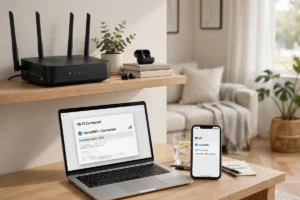
A home-office monitor sits at the center of a connected setup, linking a laptop, webcam, speakers, and sometimes a tablet or phone. That is the practical side of how connected devices fit into daily life, where devices should work together without constant replugging. A monitor with the right ports and a clean cable layout makes that setup feel professional, while a monitor with the wrong ports creates daily friction. Plan cables and placement before you buy, not after the monitor arrives.
Video calls are a core home-office task, and monitor placement affects how you look on camera. A webcam at eye level, good room lighting, and a monitor that does not force you to look down will make calls feel more natural. Connectivity for calls depends on your network too, and how home Wi-Fi works and how the internet actually works basics help you judge whether call problems come from the monitor, the webcam, or the connection. A steady network matters more than a larger screen for call quality.
Newer monitors also benefit from efficient chips and smarter power management, and how microchips are made background helps explain why modern screens can be brighter and sharper while using less energy. Comparing monitors with the coolest tech gadgets of 2026 and the coolest gadgets of the year can prevent overspending on gaming features if your work is mainly documents and calls. For people who work in areas with unreliable broadband, how Starlink satellite internet works is sometimes mentioned as an alternative connection, though local options should be compared first.
Finally, think about the whole desk. A monitor arm, a comfortable keyboard, good lighting, and a chair that supports long sessions matter as much as the screen itself. A monitor that fits your desk, your eyes, and your workflow will improve every workday, while a monitor chosen only for size may create new problems with glare, neck strain, or clutter. Invest in the setup, not just the screen.
A Practical Shortlist
Shortlist by answering: what size fits my desk and viewing distance, is text sharp at my settings, does the stand adjust to eye level, does it connect cleanly to my computer, and is brightness comfortable in my room? A monitor that passes all five is a strong choice, even without premium gaming or design features. If you design or edit professionally, add color accuracy to that list and check measured reviews.
The best monitor for a home office is the one that disappears into your work: text stays sharp, windows fit comfortably, your neck stays neutral, and cables stay tidy. It does not need to be the largest or most expensive screen available. It needs to fit your desk, your work, and your eyes, day after day, and that quiet reliability is what makes a monitor worth its price. Power and connectivity also shape that reliability: efficient screens draw on the same battery and chip advances behind how lithium-ion batteries work and how microchips are made, while smooth video calls depend on networks explained by how 5G networks work and on the account security habits in cybersecurity tips for 2026. Smarter display features, from automatic brightness to window management, increasingly use the pattern-finding tools behind how artificial intelligence works, but they should support your workflow rather than distract from it.