Learning how to set up a home WiFi network can turn frustrating dead zones, dropped calls, and buffering into a steady connection for work, school, and entertainment. A home network is not just a router in a corner. It is a system of placement, settings, and devices that must work together across rooms, floors, and walls. With a little planning, even a modest setup can feel reliable, and you can avoid paying for equipment you do not need.
This guide explains modems and routers, placement, network names and passwords, bands, guest networks, and troubleshooting in plain language. It covers apartments, family homes, and home offices, and it assumes no prior networking knowledge. By the end, you should be able to set up a network that covers your home, protects your devices, and is easy to manage day to day.
Modem, Router, and What You Actually Have
Start by identifying your equipment. A modem connects your home to your internet provider, while a router creates your home Wi-Fi network and lets devices share that connection. Many providers supply a combined modem-router, while others supply a separate modem that you pair with your own router. Knowing which you have matters, because setup steps and settings differ, and a combined device may already handle both jobs.
Check your internet plan and your equipment’s capabilities before buying anything new. A faster plan will not help if your router is old or poorly placed, and a new router will not fix a slow plan. Test your speed near the modem with a wired connection if possible, because that shows what your provider actually delivers. That baseline helps you judge whether a problem is your plan, your router, or your home layout.
Placement: The Single Biggest Factor
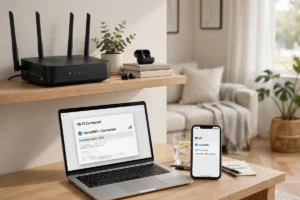
Placement affects Wi-Fi more than any setting. Routers work best in a central, open location, at roughly waist to chest height, away from thick walls, metal appliances, aquariums, and dense furniture. A router hidden in a closet, behind a TV, or on the floor in a far corner will struggle to cover a home, no matter how powerful it claims to be. Moving a router a few feet, or to a higher shelf, often improves coverage more than buying new equipment.
Think about where people actually use Wi-Fi: living rooms, offices, bedrooms, and kitchens, rather than hallways or storage rooms. If your router must stay near a modem outlet in a corner, consider a mesh system or a wired connection to a better-placed access point, rather than accepting a weak signal across the house. Test coverage by walking around with a phone, streaming video, and joining a call, because real use reveals dead zones better than a signal meter alone.
Network Name, Password, and Basic Security
Choose a clear network name and a strong, unique Wi-Fi password, and change any default admin password on your router. Default passwords are widely known and are a common entry point for unauthorized access. Use the strongest security setting your router offers for Wi-Fi encryption, and keep router firmware updated, because updates fix security issues and improve stability. These basic steps protect every device on your network, from laptops to cameras.
Set up a guest network for visitors, so guests can use the internet without accessing your main devices, printers, or shared files. A guest network is also useful for smart-home gadgets you trust less, because it limits what they can reach if compromised. Review connected devices occasionally in your router app, and remove devices you no longer recognize or own. Good network hygiene, aligned with cybersecurity tips for 2026, prevents most common home-network problems before they start.
Bands, Channels, and Too Many Devices
Modern routers offer multiple Wi-Fi bands, which are like lanes for wireless traffic. One band typically travels farther and through walls better, while another offers faster speeds over shorter distances. Most routers can steer devices to the best band automatically, and for most homes that automatic setting works well. Manually separating bands can help in specific cases, but it often complicates setup without a clear benefit, so start with automatic and adjust only if a device struggles.
Too many devices can also slow a network, especially during busy evenings when many people stream, game, and video-call at once. Prioritizing a work laptop or a game console in router settings can help during those peaks, but it cannot create speed that is not there. If your home has many smart devices, consider whether they need constant high-speed Wi-Fi or just occasional small updates, because a network designed for people, not just gadgets, will feel faster where it matters.
Wired Connections Where They Matter Most
Wired ethernet connections are faster and more stable than Wi-Fi, and they are worth using for stationary devices that need reliability: desktop computers, game consoles, TVs, and work laptops at a desk. A wired device also frees Wi-Fi capacity for phones, tablets, and laptops that move around the house. If running a cable is impractical, a powerline adapter or a mesh node with an ethernet port can bring a wired connection closer to where you need it.
Understanding how home Wi-Fi works helps you decide where wired connections give the biggest benefit. A single wired connection to a key device, like a work computer, often improves video calls more than a router upgrade. For other rooms, a well-placed mesh node or access point, connected by wire where possible, can extend reliable coverage without the instability of a basic extender. The goal is a hybrid network: wired where possible, wireless where needed.
Setting Up Step by Step
Set up in this order: connect the modem and confirm internet access, connect the router, change admin and Wi-Fi passwords, update firmware, choose a network name, and set up a guest network. Then connect devices one room at a time, testing each area as you go. This orderly approach makes troubleshooting easier, because you can tell whether a problem is the internet connection, the router, or a specific device, rather than guessing among all three at once.
Keep a simple record of your network name, password, and router login in a safe place, like a password manager, so you can help visitors or troubleshoot without resetting everything. Label cables if you have several, and note where the router and modem sit, because future you, or a support technician, will thank you for a tidy setup. A network that is documented is a network that is easier to fix and easier to live with.
Home WiFi in a Connected Home
A home network supports far more than laptops and phones. Cameras, speakers, thermostats, lights, and appliances all share it, which is the practical heart of how connected devices fit into daily life. When Wi-Fi is steady, those devices respond promptly and update reliably. When Wi-Fi is weak, every device gets blamed in turn, even though the network is the real problem. Fixing coverage and security first often makes existing gadgets feel newer and faster without replacing them.
Mobile networks interact with home Wi-Fi too. Learning how 5G networks work and how the internet actually works basics helps you decide when to use mobile data as a backup, when to hotspot from a phone during an outage, and when a problem needs your provider rather than new hardware. For rural homes, how Starlink satellite internet works is sometimes discussed as an alternative internet source, though availability and local options vary. Whatever your internet source, distribution around the home still matters.
Newer routers use efficient chips and smarter radios to handle many devices, and how microchips are made background helps explain why a newer router may outperform an older one even at similar speeds. Smarter management features, from automatic channel selection to device prioritization, increasingly use the ideas behind how artificial intelligence works, but they should support simple management, not complicate it. Comparing options with the coolest tech gadgets of 2026 and the coolest gadgets of the year can keep spending focused on coverage and reliability rather than flashy extras.
Finally, think about future needs. A home office, a new gaming setup, or more smart devices will increase demand, so choose equipment that can grow, like a router with spare ports or a mesh system that allows extra nodes. A network built with a little headroom will adapt to new devices without a complete rebuild, which saves money and frustration over time.
Troubleshooting Without Panic
When Wi-Fi fails, troubleshoot in order: check whether the problem affects one device or all devices, restart the affected device, restart the router and modem, and test near the router. If only one device fails, focus on that device’s settings or Wi-Fi adapter. If all devices fail, focus on the modem, router, or provider. This simple order prevents random setting changes that make problems harder to diagnose.
The best home WiFi network is the one you stop thinking about: it covers your rooms, handles busy evenings, protects your devices, and lets you work, learn, and relax without buffering or dropouts. Set it up carefully, place equipment well, secure it properly, and test it in real use. That patient approach will give you a network that simply works, day after day, for everyone in your home.