Learning how to free up phone storage can turn a phone that constantly warns you about space into a phone that works smoothly again. Storage fills quietly: photos, videos, messages, downloaded files, and app data accumulate day after day, until an update fails, a photo will not save, or an app crashes. The fix is usually not a new phone. It is a calm cleanup, a backup, and a few habit changes that keep space free in the future.
This guide walks through safe cleanup steps in order: check what is using space, back up what matters, delete what you do not need, and manage apps and downloads. It avoids deleting anything important by accident, and it explains cloud storage honestly, including what stays available offline and what does not. Whether your phone is nearly full or just getting tight, these steps will help you reclaim space without losing memories.
First, See What Is Using Your Storage
Start with your phone’s built-in storage view, which shows how much space apps, photos, videos, messages, and system files use. That breakdown matters, because the fix for a photo-heavy phone is different from the fix for an app-heavy phone. If photos and videos dominate, focus on backup and cleanup there. If apps dominate, focus on unused apps and their cached data. If messages dominate, focus on large attachments and old conversations.
Do not delete system files or data you do not understand, because that can break apps or settings. Focus on your own files: photos, videos, downloads, and apps you installed. A storage view also shows whether your phone has expandable storage or relies on internal storage and cloud options, which shapes your long-term plan. Knowing the breakdown first prevents random deleting that frees little space while risking important files.
Back Up Before You Delete Anything
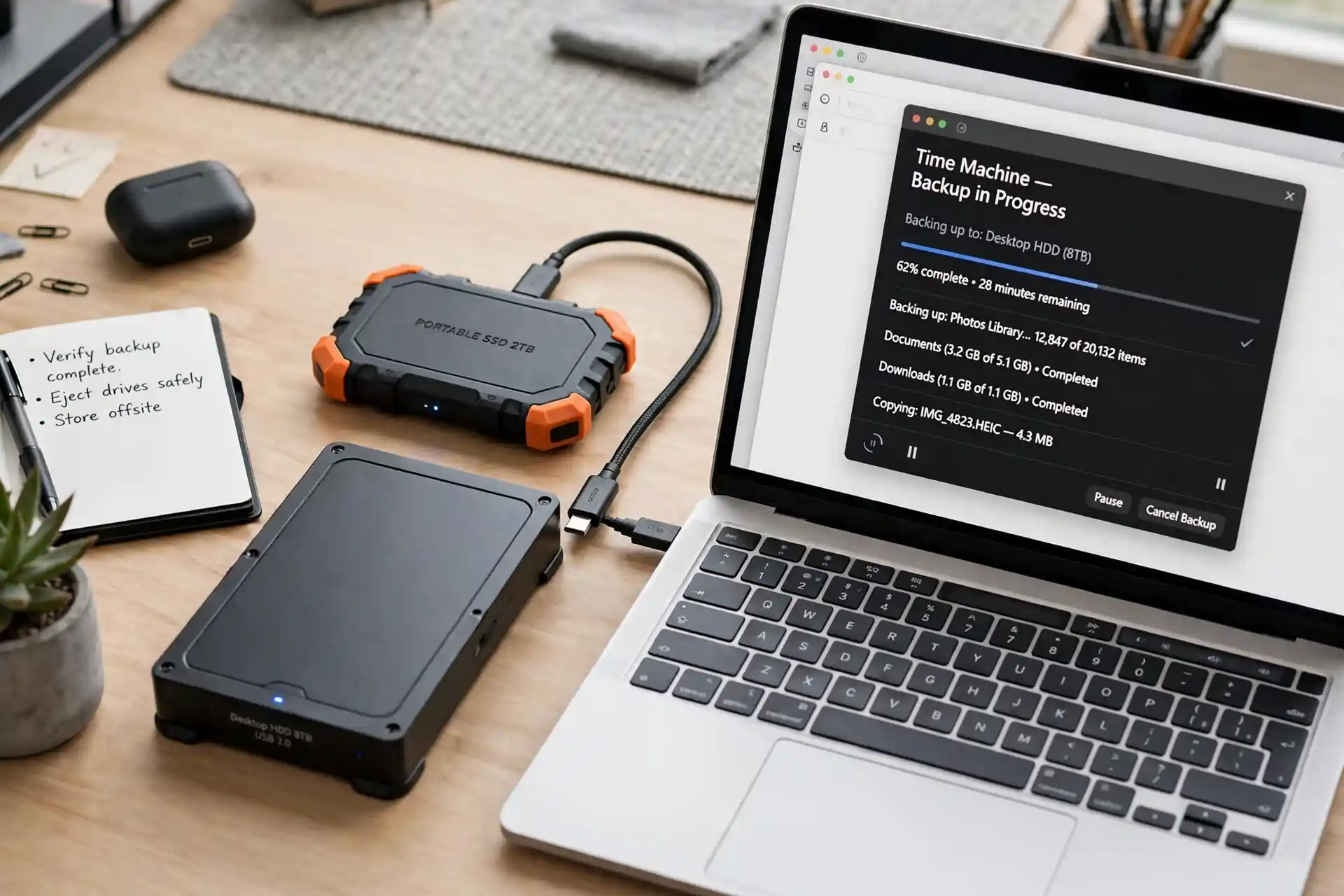
Back up photos, videos, and important documents before any major cleanup. Use your phone’s built-in backup or a cloud service you trust, and confirm that backed-up photos are actually available on another device or in a web account before deleting originals from the phone. A backup that you have not verified is not a backup, and deleting originals on faith is how memories are lost.
For documents and work files, keep a second copy where you can find it, such as a computer or a cloud folder with a clear name. Once backup is verified, you can safely remove local copies of files you rarely need on the phone, knowing you can retrieve them when needed. This step takes a little time up front, but it makes every later deletion calm and reversible, which is exactly what you want when storage is tight.
Clean Photos and Videos Safely
Photos and videos are usually the largest storage category. Start with duplicates, blurry shots, accidental bursts, and screenshots you no longer need, because those free space without losing anything meaningful. Next, review long videos, especially slow-motion or high-resolution clips, and keep only the versions you truly want. Many phones offer a feature to remove local copies of backed-up photos while keeping smaller previews, which can free a lot of space while keeping your library browsable.
Be careful with messaging app media, because photos and videos sent in chats can duplicate your camera library and hide in app storage. Review large chat attachments, save the ones that matter to your library or backup, and delete the rest from the chat storage where your phone allows it. A monthly photo habit, ten minutes to delete duplicates and back up new photos, will prevent storage warnings far better than a yearly emergency cleanup.
Manage Apps, Downloads, and Offline Content
Unused apps take space and often store data in the background. Uninstall apps you have not used in months, especially games and large apps, and know that you can reinstall most purchased or free apps later without losing your account, though game progress or offline data may vary. For apps you keep, check their storage: some let you clear cache or downloaded content without deleting your account or settings, which is a safer first step than uninstalling.
Downloads and offline content also hide space: podcasts, music, maps, and videos saved for offline use can grow large over time. Review downloaded episodes, playlists, and maps, and remove offline content you have already watched or no longer need. Streaming instead of downloading, where your connection allows, can keep storage lighter, and how home Wi-Fi works and how the internet actually works basics help you judge when streaming is practical and when offline downloads are worth the space.
Messages, Mail, and Browser Data
Messages and mail accumulate attachments over years, and older conversations can hold hundreds of megabytes of photos and videos. Save important attachments to your library or backup, then delete large or old conversations you no longer need, or set messages to auto-delete after a period where your phone offers that option. For mail, archive or delete large newsletters and attachments, and be cautious about deleting mail you may need for receipts or records.
Browser and app caches can also grow, but clearing them should be done thoughtfully, because you may lose saved logins or offline data. Clear cache for apps that are clearly bloated, and keep passwords in a password manager or a secure note so you can sign back in easily. If an app still takes excessive space after cache clearing, reinstalling it fresh can help, but check what data will be lost first, especially for messaging and note apps.
Cloud Storage: Helpful, With Trade-Offs
Cloud storage can free phone space, but it is not unlimited or free forever. Most services offer a limited free tier, then charge for more, so check your plan before relying on it for a large library. Also check whether cloud photos are full-resolution originals or smaller optimized versions, and whether you can access them without internet. A cloud copy is excellent for backup, but it is not a replacement for a local copy if you often work offline or in areas with weak coverage.
For areas with weak broadband, how Starlink satellite internet works is sometimes discussed as an alternative connection, though local options should be compared first. The broader point is practical: choose a backup method that fits your connection, your budget, and your privacy comfort. Keep security in mind too, using strong passwords and two-factor authentication for cloud accounts, habits that align with cybersecurity tips for 2026, because a cloud library holds some of your most personal photos and documents.
Storage in a Connected Life
Phones sit at the center of a connected life, syncing photos to tablets, watches, speakers, and computers, which is the everyday side of how connected devices fit into daily life. That syncing is convenient, but it can also duplicate files across devices and fill each one in turn. Review sync settings so each device keeps only what it needs: a watch may need music, a tablet may need documents, and a phone may need photos, but no device needs everything at full size all the time.
Newer phones use efficient chips and smarter storage management, and how microchips are made background helps explain why some phones handle large libraries more smoothly than others. Features that automatically suggest duplicates, large files, or unused apps increasingly use the pattern-finding ideas behind how artificial intelligence works, which can speed up cleanup but should not delete anything without your review. Comparing storage options with the coolest tech gadgets of 2026 and the coolest gadgets of the year can also help you decide whether a phone with more storage is worth it at your next upgrade, or whether better habits will suffice.
Mobile data also affects storage choices. Downloading for offline use saves data but uses space, while streaming saves space but uses data, and how 5G networks work basics can help you judge that trade-off on your plan. For travelers, how GPS navigation works and offline maps are a good example: download maps only for areas you will actually visit, then delete them after the trip, rather than keeping an entire region offline indefinitely.
Finally, build a simple monthly routine: back up photos, delete duplicates and screenshots, review downloads, and uninstall unused apps. Five to ten minutes a month will keep storage warnings away and keep your phone feeling fast. A phone with comfortable free space updates smoothly, saves photos reliably, and runs apps without constant warnings, which is a small daily relief worth maintaining.
When Cleanup Is Not Enough
If cleanup frees little space, or if your phone’s system files dominate storage, you may need a different plan: a phone with more storage at your next upgrade, a computer backup routine, or a paid cloud tier for a large library. Compare costs honestly, including the time spent managing a nearly full phone every week. Sometimes a larger-storage phone is cheaper in time and frustration than constant cleanup, especially for photographers and parents with large video libraries.
For most people, though, a verified backup plus a focused cleanup will free significant space and restore a phone that works smoothly. Start with the storage view, back up first, delete duplicates and unused apps, and set a monthly habit. That order keeps your memories safe, your phone fast, and your storage warnings gone, without buying a new phone before you need one.